Attention: Here be dragons
This is the latest
(unstable) version of this documentation, which may document features
not available in or compatible with released stable versions of Godot.
Checking the stable version of the documentation...
为 Windows 平台编译
参见
这个页面描述的是如何从源码编译 Windows 编辑器和导出模板二进制文件。如果你要找的是导出项目到 Windows,请阅读 为 Windows 导出。
需求
要在Windows下进行编译, 需要以下内容:
Visual Studio Community,至少是 2019 版,推荐 Visual Studio 2022。安装时请确保在工作流列表中启用了 C++。如果已经安装过 Visual Studio 但没有启用 C++ 支持,请重新运行安装器,会显示修改按钮。
MinGW-w64 和 GCC 可以作为 Visual Studio 的替代品。请确保在安装/配置时使用
posix线程模型。重要提示:使用 MinGW 编译master分支时需要至少是 GCC 9。Python 3.6+。请确保在安装器中启用将 Python 加入 ``PATH`` 的选项。
SCons 3.1.2+ 构建系统。建议使用最新稳定版本,这样就能够正确支持最近版本的 Visual Studio。
备注
如果你已经安装了 MSYS2,你可以使用以下命令轻松安装 MinGW 和其他依赖项:
pacman -S mingw-w64-x86_64-python3-pip mingw-w64-x86_64-gcc  \
    mingw-w64-i686-python3-pip mingw-w64-i686-gcc make
对于每个 MSYS2 MinGW 子系统,你应该在其 shell 中运行 pip3 install scons。
设置 SCons
要安装 SCons,请打开命令提示符并运行以下命令:
python -m pip install scons
如果你看到提示信息 Defaulting to user installation because normal site-packages is not writeable,那么你就需要提升权限后再重新执行该命令。使用管理员身份打开一个新的命令提示符,然后再执行该命令,确保 SCons 可以通过 PATH 访问。
要检查是否已正确安装Python和SCons, 可以在命令提示符 (cmd.exe) 中键入 python --version 和 scons --version.
如果上面的命令不起作用, 请确保在安装后将Python添加到 PATH 环境变量中, 然后再次检查. 为此, 你可以再次运行Python安装程序并启用将Python添加到 PATH 的选项.
如果 SCons 无法检测到你的 Visual Studio 安装,可能是因为你的 SCons 版本太老了。请使用 python -m pip install --upgrade scons 将其更新为最新版本。
下载 Godot 的源代码
详细步骤请参考 获取源代码。
从现在开始,本教程将假设你将源代码放在了 C:\godot。
警告
为了防止编译过程中由于连续病毒扫描而导致的速度减慢,请将 Godot 源文件夹添加到杀毒软件中的例外列表中。
For Windows Defender, hit the Windows key, type "Windows Security" then hit Enter. Click on Virus & threat protection on the left panel. Under Virus & threat protection settings click on Manage Settings and scroll down to Exclusions. Click Add or remove exclusions then add the Godot source folder.
编译
选择编译器
SCons 将自动查找并使用现有的 Visual Studio 安装。如果你没有安装 Visual Studio,它将尝试使用 MinGW 代替。如果你已经安装了 Visual Studio 并想使用 MinGW,请在 SCons 命令行中传入 use_mingw=yes。注意,MSVC 的构建不能从 MSYS2 或 MinGW 的 shell 中进行。使用 cmd.exe 或 PowerShell 代替。
小技巧
During development, using the Visual Studio compiler is usually a better idea, as it links the Godot binary much faster than MinGW. However, MinGW can produce more optimized binaries using link-time optimization (see below), making it a better choice for production use. This is particularly the case for the GDScript VM which performs much better with MinGW compared to MSVC. Therefore, it's recommended to use MinGW to produce builds that you distribute to players.
All official Godot binaries are built in custom containers using MinGW.
运行 SCons
After opening a command prompt, change to the root directory of
the engine source code (using cd) and type:
C:\godot> scons platform=windows
备注
使用多个 CPU 线程进行编译时,SCons 可能会警告 pywin32 丢失。你可以放心地忽略此警告。
If all goes well, the resulting binary executable will be placed in
C:\godot\bin\ with the name godot.windows.editor.x86_32.exe or
godot.windows.editor.x86_64.exe. By default, SCons will build a binary matching
your CPU architecture, but this can be overridden using arch=x86_64 or
arch=x86_32.
该可执行文件包含整个引擎,并且运行时没有任何依赖项。运行它会启动项目管理器。
小技巧
If you are compiling Godot for production use, you can
make the final executable smaller and faster by adding the
SCons option production=yes. This enables additional compiler
optimizations and link-time optimization.
LTO takes some time to run and requires about 7 GB of available RAM
while compiling. If you're running out of memory with the above option,
use production=yes lto=none or production=yes lto=thin for a
lightweight but less effective form of LTO.
备注
如果你想为自己的 Godot 构建和官方发布使用单独的编辑器设置,你可以通过在 bin/ 文件夹中创建一个名为 ._sc_ 或 _sc_ 的文件来启用 自包含模式。
编译时启用 Direct3D 12 支持
Godot 构建默认不包含对 Direct3D 12 图形 API 的支持。
To compile Godot with Direct3D 12 support you need at least the following item:
godot-nir-static 库。我们将所需的 Mesa 库编译成了静态库。下载完成后将其解压,记下解压后得到的文件夹的路径,后面会用到。
备注
你也可以自行构建 godot-nir-static 库,方法如下:
安装 Python 包 mako,用于生成部分文件。
克隆 godot-nir-static 目录并打开。
执行:
git submodule update --init
./update_mesa.sh
scons
如果你是用 MinGW 进行的构建,请在
scons命令后加上use_mingw=yes,你还可以用arch={架构}指定构建的架构。构建 Mesa 静态库的编译器应该与构建 Godot 所用的编译器一致。
另外你还可以在编译时启用以下附加功能:
PIX is a performance tuning and debugging application for Direct3D12 applications. If you compile-in support for it, you can get much more detailed information through PIX that will help you optimize your game and troubleshoot graphics bugs. To use it, download the WinPixEventRuntime package. You will be taken to a NuGet package page where you can click "Download package" to get it. Once downloaded, change the file extension to .zip and unzip the file to some path.
Agility SDK can be used to provide access to the latest Direct3D 12 features without relying on driver updates. To use it, download the latest Agility SDK package. You will be taken to a NuGet package page where you can click "Download package" to get it. Once downloaded, change the file extension to .zip and unzip the file to some path.
备注
If you use a preview version of the Agility SDK, remember to enable developer mode in Windows; otherwise it won't be used.
备注
If you want to use a PIX with MinGW build, navigate to PIX runtime directory and use the following commands to generate import library:
# For x86-64:
gendef ./bin/x64/WinPixEventRuntime.dll
dlltool --machine i386:x86-64 --no-leading-underscore -d WinPixEventRuntime.def -D WinPixEventRuntime.dll -l ./bin/x64/libWinPixEventRuntime.a

# For ARM64:
gendef ./bin/ARM64/WinPixEventRuntime.dll
dlltool --machine arm64 --no-leading-underscore -d WinPixEventRuntime.def -D WinPixEventRuntime.dll -l ./bin/ARM64/libWinPixEventRuntime.a
构建 Godot 时,你需要让 SCons 使用 Direct3D 12 并指定附加库的查找位置:
C:\godot> scons platform=windows d3d12=yes mesa_libs=<...>
或者启用所有选项:
C:\godot> scons platform=windows d3d12=yes mesa_libs=<...> agility_sdk_path=<...> pix_path=<...>
备注
For the Agility SDK's DLLs you have to explicitly choose the kind of
workflow. Single-arch is the default (DLLs copied to bin/). If you
pass agility_sdk_multi_arch=yes to SCons, you'll opt-in for
multi-arch. DLLs will be copied to the appropriate bin/<arch>/
subdirectories and at runtime the right one will be loaded.
编译时启用 ANGLE 支持
ANGLE provides a translation layer from OpenGL ES 3.x to Direct3D 11 and can be used to improve support for the Compatibility renderer on some older GPUs with outdated OpenGL drivers and on Windows for ARM.
By default, Godot is built with dynamically linked ANGLE, you can use it by placing
libEGL.dll and libGLESv2.dll alongside the executable.
备注
You can use dynamically linked ANGLE with export templates as well, rename
aforementioned DLLs to libEGL.{architecture}.dll and libGLESv2.{architecture}.dll
and place them alongside export template executables, and libraries will
be automatically copied during the export process.
To compile Godot with statically linked ANGLE:
Download pre-built static libraries from godot-angle-static library, and unzip them.
When building Godot, add
angle_libs={path}to tell SCons where to look for the ANGLE libraries:scons platform=windows angle_libs=<...>
备注
You can optionally build the godot-angle-static libraries yourself with the following steps:
Clone the godot-angle-static directory and navigate to it.
运行以下命令:
scons
If you are buildng with MinGW, add
use_mingw=yesto the command, you can also specify build architecture usingarch={architecture}.ANGLE static library should be built using the same compiler you are using for building Godot.
在 Visual Studio 中进行开发
编译 Godot 不需要使用 IDE,SCons 会处理所有事情。但是如果你想要做引擎开发,或者调试引擎的 C++ 代码,你可能会对配置代码编辑器或者 IDE 感兴趣。
基于文件夹的编辑器不需要任何特殊的设置就可以开始使用 Godot 的代码库。要使用 Visual Studio 来编辑项目,需要先设置解决方案。
你可以通过使用 vsproj=yes 参数运行 SCons 来创建 Visual Studio 解决方案,如下所示:
scons p=windows vsproj=yes
你现在可以在 Visual Studio 解决方案中打开 Godot 的源代码,并能够通过 Visual Studio 的构建按钮构建 Godot。
参见
详情请参阅 Visual Studio。
从其他操作系统为 Windows 交叉编译
If you are a Linux or macOS user, you need to install MinGW-w64, which typically comes in 32-bit and 64-bit variants. The package names may differ based on your distribution, here are some known ones:
Arch Linux |
pacman -Sy mingw-w64
|
Debian / Ubuntu |
apt install mingw-w64
|
Fedora |
dnf install mingw64-gcc-c++ mingw64-winpthreads-static \
            mingw32-gcc-c++ mingw32-winpthreads-static
|
macOS |
brew install mingw-w64
|
Mageia |
urpmi mingw64-gcc-c++ mingw64-winpthreads-static \
      mingw32-gcc-c++ mingw32-winpthreads-static
|
在尝试编译之前,SCons 将在 PATH 环境变量中检查以下二进制文件:
i686-w64-mingw32-gcc
x86_64-w64-mingw32-gcc
If the binaries are not located in the PATH (e.g. /usr/bin),
you can define the following environment variable to give a hint to
the build system:
export MINGW_PREFIX="/path/to/mingw"
Where /path/to/mingw is the path containing the bin directory where
i686-w64-mingw32-gcc and x86_64-w64-mingw32-gcc are located (e.g.
/opt/mingw-w64 if the binaries are located in /opt/mingw-w64/bin).
为了确保你做的事正确,在 shell 中执行以下操作将导致编译器正常工作(版本输出可能因你的系统而异):
${MINGW_PREFIX}/bin/x86_64-w64-mingw32-gcc --version
# x86_64-w64-mingw32-gcc (GCC) 13.2.0
备注
When cross-compiling for Windows using MinGW-w64, keep in mind only
x86_64 and x86_32 architectures are supported. Be sure to
specify the right arch= option when invoking SCons if building
from a different architecture.
故障排除
由于默认配置不支持POSIX线程, 因此从某些Ubuntu版本进行交叉编译可能会导致 此bug .
你可以按照以下说明针对 64 位更改该配置:
sudo update-alternatives --config x86_64-w64-mingw32-gcc
<choose x86_64-w64-mingw32-gcc-posix from the list>
sudo update-alternatives --config x86_64-w64-mingw32-g++
<choose x86_64-w64-mingw32-g++-posix from the list>
对于 32 位:
sudo update-alternatives --config i686-w64-mingw32-gcc
<choose i686-w64-mingw32-gcc-posix from the list>
sudo update-alternatives --config i686-w64-mingw32-g++
<choose i686-w64-mingw32-g++-posix from the list>
创建 Windows 导出模板
Windows export templates are created by compiling Godot without the editor, with the following flags:
C:\godot> scons platform=windows target=template_debug arch=x86_32
C:\godot> scons platform=windows target=template_release arch=x86_32
C:\godot> scons platform=windows target=template_debug arch=x86_64
C:\godot> scons platform=windows target=template_release arch=x86_64
If you plan on replacing the standard export templates, copy these to the
following location, replacing <version> with the version identifier
(such as 4.2.1.stable or 4.3.dev):
%APPDATA%\Godot\export_templates\<version>\
使用以下名称:
windows_debug_x86_32_console.exe
windows_debug_x86_32.exe
windows_debug_x86_64_console.exe
windows_debug_x86_64.exe
windows_release_x86_32_console.exe
windows_release_x86_32.exe
windows_release_x86_64_console.exe
windows_release_x86_64.exe
此外, 如果你使用的是自定义模块或自定义引擎代码, 则可能需要在此处将二进制文件配置为自定义导出模板:
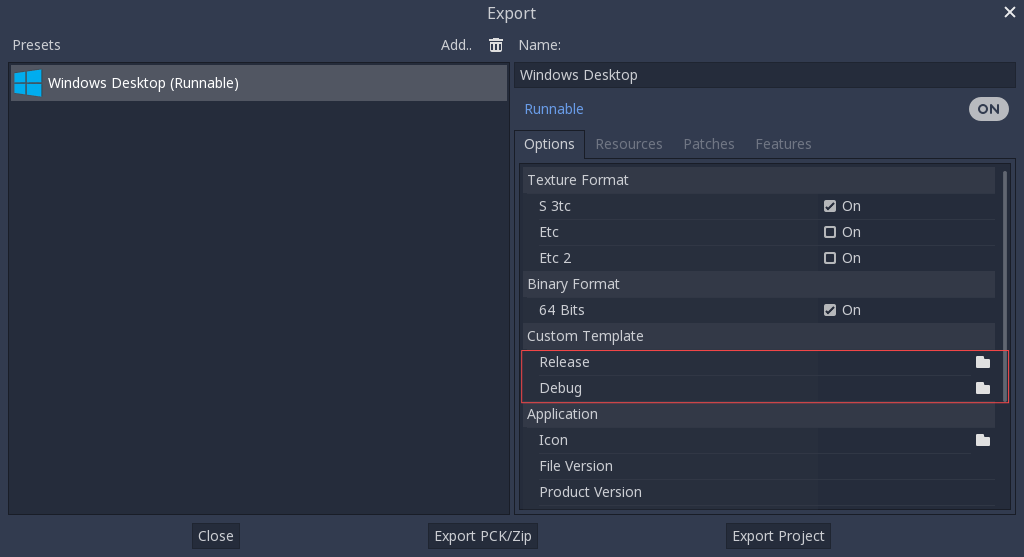
在这种情况下, 你不需要复制它们, 只需引用在Godot源文件夹的 bin\ 目录中生成的文件, 因此下次构建时, 将自动引用自定义模板.